

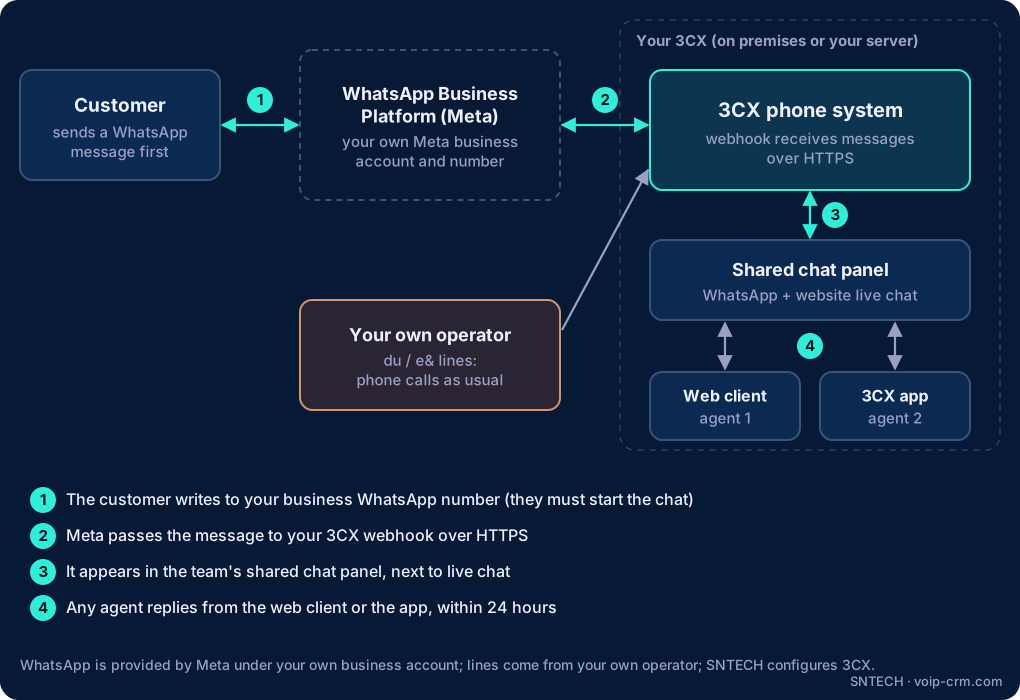
3CX WhatsApp integration lets your team answer customer WhatsApp messages from inside 3CX: messages to your business WhatsApp number arrive in the same shared chat panel as website live chat, and any available agent can reply from the 3CX web client or app. WhatsApp itself comes from Meta. Your company sets up its own WhatsApp Business Platform account with Meta, and 3CX connects to it. Here is what that means in practice for an office in Dubai or anywhere in the UAE.
What 3CX WhatsApp integration does for your business
In many UAE companies, customer WhatsApp lives on one person’s mobile, or on a shared phone in a drawer at reception. When that person is on leave, messages go unanswered, and when they leave the company, the chat history leaves too. Connecting WhatsApp to 3CX changes that:
- One business number, many agents. Sales or support staff answer from their own 3CX web client or mobile app.
- One place for messages. WhatsApp sits next to website live chat and other messaging channels in the 3CX chat panel, so the team does not juggle apps.
- Messages stay with the company, not on a personal phone.
Your phone calls are not affected. The 3CX phone system is installed at your UAE premises and uses lines from your own licensed operator (du or e&); WhatsApp is an extra messaging channel on top of it.
How 3CX WhatsApp integration works
The customer sends a message to your business WhatsApp number. Meta’s WhatsApp Business Platform passes it to a webhook address on your 3CX system over HTTPS. 3CX shows it in the team chat panel, an agent takes it and replies, and the reply goes back to the customer through Meta.
What you need before you start
Based on 3CX’s WhatsApp integration guide, prepare these first:
| Item | Who provides it | Notes |
|---|---|---|
| WhatsApp Business Platform account | Your company, with Meta | Created through a Meta app at developers.facebook.com, under your company’s business portfolio |
| Meta business verification | Your company, with Meta | 3CX notes the service will not work fully until verification is complete |
| A phone number for WhatsApp | Your company (from your own operator) | Must not be registered on any WhatsApp account |
| 3CX phone system | Licence from 3CX or an authorised 3CX reseller | SNTECH advises, installs and configures |
| Admin access to both | Your company | At least one administrator on the Meta app |
WhatsApp Business number: new or existing?
You can use your existing office number, as long as nobody has registered it on WhatsApp. If your main number is already on the WhatsApp Business app on someone’s phone, that WhatsApp account has to be deleted first, which also means losing the chats stored in that app. Export anything important first, or use a different number.
3CX WhatsApp setup: step by step
The outline, from 3CX’s documentation:
- In the Meta developer portal, go to My Apps > Create App, choose “Connect with customers through WhatsApp” and select your company’s business portfolio.
- Under App roles, add at least one administrator.
- Under Use cases > Customize, check that the whatsapp_business_messaging and whatsapp_business_management permissions are present.
- In 3CX, go to Admin > Voice & Chat > Add Messaging > Add WhatsApp and copy the Webhook URL.
- Back in Meta, paste the Webhook URL, enter a verify token, select the messages webhook and click Verify & Save.
- Register and verify your phone number, then enable Subscribe webhooks.
- Copy the Phone Number ID, the number and the access token into the 3CX WhatsApp page and save.
- After Meta business verification is complete, send a WhatsApp message to the number from a personal phone and reply from 3CX.
Limits to know before you start
- The customer writes first. 3CX’s guide says the integration answers inbound messages; you cannot start a new conversation from 3CX.
- 24-hour reply window. After a customer messages you, you have 24 hours to reply. Plan who covers weekends and public holidays.
- Not a bulk messaging tool. For marketing broadcasts you would need other Meta-approved tools, under Meta’s rules.
- Meta’s terms and charges apply to the WhatsApp side. Check Meta’s current pricing and policies for your account.
- WhatsApp calls. 3CX has a separate guide for receiving WhatsApp voice calls, but WhatsApp voice calling is restricted in the UAE. For UAE businesses, the practical part is messaging; customers still call you on your du or e& numbers.
Field notes from UAE offices
- Start Meta verification early. Have your trade licence and a website that shows the same company name ready. Verification is usually the slowest part, not the 3CX setup.
- Landline numbers can work. If you register an office landline for WhatsApp, choose the voice-call option for the verification code. Because the line already comes into 3CX, make sure the call reaches someone who can note the code.
- On-premises 3CX needs a reachable webhook. If 3CX runs on your own server, Meta must reach it over HTTPS from the internet: a public FQDN, a valid certificate and the HTTPS port open on the firewall. See our guide to 3CX on your own VMware server.
- Decide who answers. Put WhatsApp on the same team that handles live chat, or on a dedicated sales team. Check the agents also have the 3CX app on their phones; see our 3CX mobile app guide.
- Tell customers where to write. Add a WhatsApp click-to-chat link on your website and email signature, since customers must start the conversation.
- Arabic and English. Prepare short standard replies in both languages for common questions.
Is 3CX WhatsApp right for your team?
It suits companies where several people need to answer one WhatsApp number: showrooms, clinics’ front desks, real-estate and service companies, and support teams. If you want WhatsApp chats saved against each customer record in your CRM, that is a separate integration project; see our article on PBX and CRM integration via API.
New to 3CX? You can download the free 3CX trial to test messaging with your team. The licence is bought from 3CX or an authorised 3CX reseller.
Frequently asked questions
Does 3CX provide the WhatsApp Business account?
No. Your company creates its own WhatsApp Business Platform account with Meta, completes verification, and connects it to 3CX.
Can we start WhatsApp conversations from 3CX?
No. The customer writes first, and you have 24 hours to reply.
Can we use our existing office number for WhatsApp in 3CX?
Yes, if it is not registered on any WhatsApp account. An existing WhatsApp account on that number has to be deleted first.
Will several staff be able to answer the same WhatsApp number?
Yes. Messages arrive in the shared 3CX chat panel, and any agent on the team can reply.
Do we need an on-premises 3CX for WhatsApp?
No. If you do run 3CX on your own server, Meta must reach its webhook over HTTPS, so the FQDN, certificate and firewall must be correct.
Need help?
SNTECH sets up 3CX, WhatsApp messaging and live chat for offices in Dubai, Sharjah, Ajman, Abu Dhabi, Ras Al Khaimah, Umm Al Quwain and Fujairah: we guide you through the Meta setup, configure 3CX and your firewall, and train your team. WhatsApp is provided by Meta under your own business account. Call/WhatsApp +971 56 669 8244 or email sales@voip-crm.com. See our 3CX phone system, CRM and app development and PBX and CRM integration pages.