

The 3CX mobile app puts your office extension on your iPhone or Android phone: you answer calls to your office number anywhere, and customers see the company number when you call them, not your personal mobile. Setup takes a couple of minutes with a QR code. What decides whether staff love it or give up on it is the few settings after that, especially on Android.
This guide explains how the 3CX app works with an office phone system, how to set it up, and the checks we do at handover for offices in Dubai and across the UAE.
What the 3CX mobile app does for your team
With the app, a mobile phone behaves like a desk phone on the office system. For the business, the useful parts are:
- Office calls follow the person. Sales staff visiting clients in Abu Dhabi or Sharjah still get calls to their extension, ring groups and queues.
- One company number. Outgoing calls use your office lines, so customers only ever see and save the company number.
- Free internal calls between extensions, transfers back to colleagues in the office, and voicemail in the same place.
- Personal number stays personal. When an employee leaves, the extension is removed from the system and the customer contacts stay with the company.
- Status. On iPhone, the app offers statuses such as Available, Away, Do Not Disturb, Lunch and Business Trip, each with its own forwarding rules.
The phone system itself is installed at your UAE premises and uses lines from your own licensed operator (du or e&). The app is simply another way to use your extension on that system.
How the 3CX app works with your office system
The app does not keep a connection open all day, which would drain the battery. Instead, when a call arrives for your extension, the phone system sends a push notification through Google (Android) or Apple (iPhone). The app wakes up, connects to the office system over Wi-Fi or mobile data, and rings. Outgoing calls travel the other way: from the app to the office system, then out through your operator’s lines.
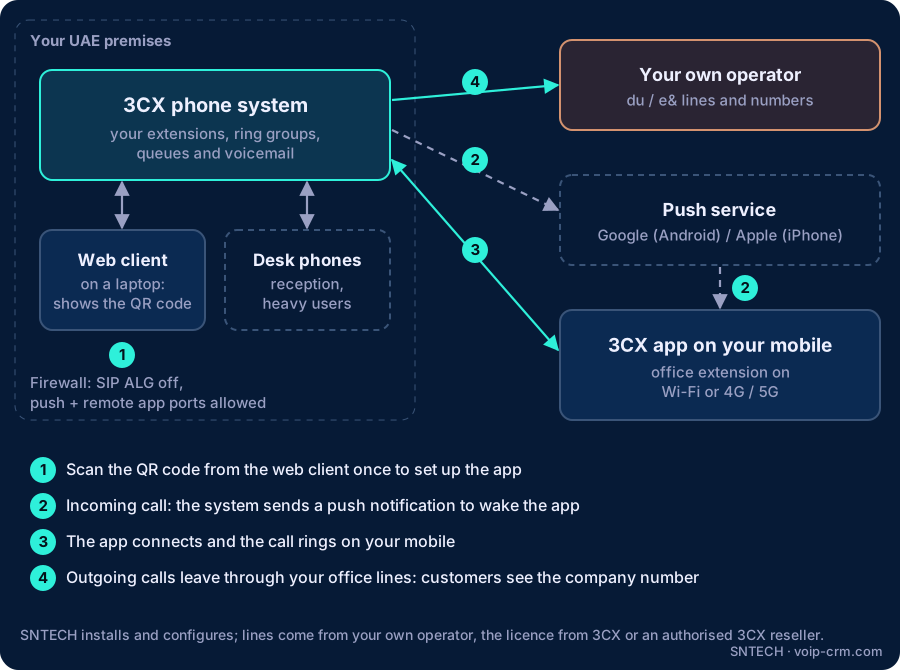
That is why most “the app didn’t ring” complaints are not about the phone system at all, but about the phone blocking the push or keeping the app asleep.
3CX app setup: step by step
From 3CX’s user manual for Android and iPhone:
- Install the 3CX app from Google Play or the App Store and open it.
- Accept the licence agreement and allow camera and microphone access.
- On a computer, open the 3CX web client and click the QR code at the top right.
- Scan the QR code with the phone. Grant the permissions it asks for and, on Android, follow the battery optimisation instructions.
- The app shows that it is ready for calls. Make a test call in and out.
The QR code button disappears from the web client after the first setup. To add a second phone or a replacement handset, go to the Apps section of the web client and generate a new QR code.
Android: stopping missed calls on the 3CX app
Android phone makers add aggressive battery saving that can stop the app from waking up. 3CX’s Android push troubleshooting guide lists the checks:
| Check | Where |
|---|---|
| Switch off battery optimisation | 3CX app: Settings > Advanced; then phone Apps > 3CX > allow background usage, “Unrestricted” |
| Allow background data | 3CX app: Settings > Advanced; phone data settings > unrestricted |
| Allow notifications (Android 13+) | Phone Apps > 3CX > Permissions > Notifications |
| Ring on the lock screen (Android 14+) | 3CX app: Settings > Advanced > Notifications; allow full-screen alerts |
| Do Not Disturb off | Status in the app (red = DND) and the phone’s own DND |
| Cleaner apps | Whitelist 3CX in any “optimizer” or cleaner app |
3CX also notes that a push registration expires if the phone is offline for a long time (14 days from V20 Update 10). Staff coming back from long leave may need to scan a fresh QR code.
iPhone settings worth checking
- Allow notifications for the 3CX app and check that a Focus mode is not silencing it.
- Choose a distinct ringtone in the app’s notification sound settings so office calls are easy to recognise.
- Siri calling and the Speed Dial home-screen widget are optional extras for heavy users.
Field notes from UAE offices
- Test with the screen locked. At handover we lock each phone, put it on mobile data, call the extension from outside, and repeat on office Wi-Fi. If it rings in both cases, it will ring for customers.
- On-premises firewalls. If your 3CX runs on your own server, the firewall must allow the push service traffic (3CX names Google Firebase Cloud Messaging for Android) and the ports 3CX needs for remote apps. A FortiGate with SIP ALG still switched on is a common cause of one-way audio.
- Company domain inside and outside. Use one PBX address (FQDN) that works on office Wi-Fi and on mobile data, so the app does not break when staff walk out of the building.
- Car Bluetooth. Android has a Car/Bluetooth Support option under Settings > Advanced. Turn it on for drivers and field sales staff.
- Weak Wi-Fi spots. Choppy app calls inside the office usually mean poor coverage in meeting rooms or the warehouse, not a 3CX fault.
App, web client or desk phone?
Most offices mix all three. Reception and people on calls all day are better on a desk phone with a headset; managers and sales staff use the app; everyone can use the web client on their laptop. See our guide to Yealink IP phones for 3CX for the desk side.
New to 3CX? You can download the free 3CX trial and test the app with a few extensions. The licence is bought from 3CX or an authorised 3CX reseller.
Frequently asked questions
How do I set up the 3CX mobile app?
Install the app, allow camera and microphone, then scan the QR code shown at the top right of the 3CX web client.
Do customers see my personal mobile number when I call from the 3CX app?
No. Calls go out through the office system and lines, so customers see the company caller ID.
Why does the 3CX app not ring on my Android phone?
Usually battery optimisation, background data or notification permissions. Work through the checklist above.
Can I use the 3CX app on more than one phone?
Yes. Generate a new QR code from the Apps section of the web client for each extra device.
Do we need desk phones if staff use the 3CX app?
No. Many offices start with the app and web client and add desk phones later.
Need help?
SNTECH sets up 3CX, the mobile app and desk phones for offices in Dubai, Sharjah, Ajman, Abu Dhabi, Ras Al Khaimah, Umm Al Quwain and Fujairah, including firewall setup, the connection to your du or e& lines, staff handover and AMC support. Call/WhatsApp +971 56 669 8244 or email sales@voip-crm.com. See our 3CX phone system, IP PBX phone system and network and IT support pages.