

When choosing Yealink IP phones for 3CX, match the phone to the job: a basic T5 desk phone for most staff, a touchscreen T5 model for reception and managers, DECT cordless handsets for people who walk the floor, and a good headset for anyone on calls all day. Then check each model is on the 3CX supported phones list, so 3CX can set it up and keep its firmware current for you.
This guide is for office managers and IT teams in the UAE planning a new 3CX system or replacing old handsets. If you are still deciding on the phone system itself, start with our guide to 3CX features.
Start with roles, not models
The most common mistake we see is buying the same phone for every desk. A better way is to list the roles in your office and how each one uses the phone:
- General staff: a few calls a day, mostly internal transfers.
- Reception and operators: answer the main number, see who is busy, transfer quickly.
- Managers: many calls, often on a headset or Bluetooth with their mobile.
- Sales and support teams: on the phone most of the day, need a comfortable headset.
- Warehouse, showroom or clinic floor staff: move around, cannot sit at a desk.
- Hybrid and field staff: often away, and may only need the 3CX app.
Count the people in each role. That count, not the brochure, decides your phone order.
Yealink T5 desk phones for 3CX
The Yealink T5 series is the current desk phone range that 3CX documents for Yealink. 3CX’s configuration guide covers the T53, T53W, T54W, T57W and T58 models. The main differences are the screen, wireless features and accessories.
| Yealink model | Screen | Good fit for |
|---|---|---|
| T53 / T53W | 3.7-inch graphical screen | General staff; the W version adds Wi-Fi and Bluetooth |
| T54W | Larger colour screen | Team leaders and staff who use Bluetooth headsets |
| T57W | 7-inch touchscreen | Reception, managers, anyone who watches colleagues’ status |
| T58W (Pro) | 7-inch touchscreen, Android | Executives; supports a Bluetooth handset and an optional USB camera |
Source: Yealink product comparison and the 3CX Yealink T5 configuration guide. Always confirm the exact model and firmware on the current 3CX supported list before ordering.
Busy lamp field and expansion modules
Reception wants to see at a glance who is free. On 3CX, the phone’s programmable keys can show colleagues’ status (busy lamp field). A touchscreen T57W shows many more keys on screen. For a busy front desk, Yealink’s EXP50 expansion module plugs into the USB port of supported T5 models to add more keys.
Wi-Fi models: useful, but cable first
The “W” models have built-in Wi-Fi, which helps where there is no network point. For call quality, a cabled connection with PoE is still the better choice. We use Wi-Fi only for desks where cabling is not practical, and only on a properly set up office Wi-Fi.
DECT cordless phones for staff on the move
For people who walk around (warehouse supervisors, showroom sales, clinic nurses, hotel staff), a DECT cordless handset is more reliable than a mobile app on Wi-Fi. Yealink offers two approaches that 3CX supports:
- Single base (W70B): one base station and several handsets, for a small office or one floor.
- Multi-base (W80 and W90): several bases managed by a DECT Manager, so handsets hand over between bases as people walk. This suits larger buildings, warehouses and multi-floor sites.
Each T5 desk phone can also pair with cordless handsets, which helps a manager who wants a desk phone plus a handset to carry around the office.
What DECT does not do on 3CX
3CX lists some limits for Yealink DECT: no paging groups (including multicast), no CTI control, and parking only on the main parking orbit. If your warehouse relies on overhead paging, plan a separate paging solution instead of expecting the handsets to do it.
Headsets: the cheapest upgrade for busy teams
For sales and support staff, the headset matters more than the phone. A comfortable headset reduces neck strain, background noise and complaints from callers. Common options are:
- Wired USB headsets: simple and reliable, plug into the phone’s USB port or a PC running the 3CX app.
- Bluetooth headsets: pair with Bluetooth models like the T54W and T57W, and often with the user’s mobile too.
- DECT wireless headsets: longer range than Bluetooth, good for people who stand up and walk during calls.
Pick headsets that work with both the desk phone and the computer, because many staff switch between the phone and the 3CX app during the day.
How 3CX sets up Yealink phones
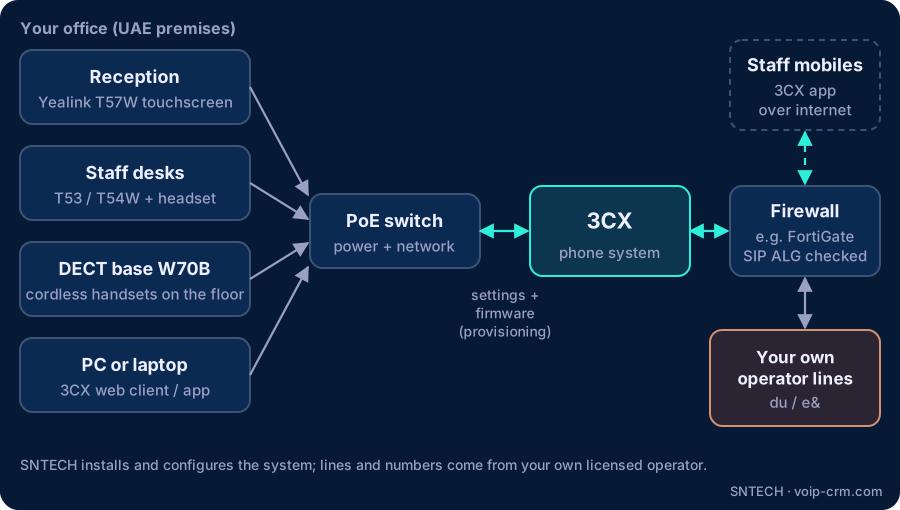
One reason to stay on the 3CX supported list is provisioning: 3CX creates the phone’s settings, keys and firmware for you. In summary, based on the 3CX guide:
- Reset the phone to factory settings if it was used on another PBX.
- In the 3CX Admin Console, open the user, choose the IP Phone tab and Configure a phone, then enter the model and MAC address.
- On-premise or VPN systems use Local LAN/VPN; phones on the same LAN can also appear under PnP Phones for assignment.
- Cloud or remote phones connect through a 3CX SBC or a Yealink model 3CX lists as a router phone.
- If automatic provisioning is not available, the provisioning URL can be entered in the phone’s web page or sent via DHCP option 66.
Your 3CX system is installed and configured at your UAE premises or on your chosen server, and calls go out on lines from your own licensed operator (du or e&). SNTECH does not supply lines or numbers.
Field notes from UAE installs
- Check PoE before delivery day. Many offices have switches with PoE on only some ports, or not enough PoE budget for every phone. We check the switch first so phones do not need separate power adapters.
- SIP ALG on firewalls. On FortiGate and similar firewalls, SIP ALG can break registration or cause one-way audio for remote phones. We review it as part of every 3CX deployment.
- Old phones from the previous PBX. Phones locked to another system often refuse new settings until they are factory reset. Budget a little time for this on migration day.
- Firmware matters. 3CX states which firmware it supports for each model. Let 3CX manage firmware rather than updating phones by hand.
- Do not over-buy touchscreens. Staff who make a few calls a day rarely use the extra screen. Spend the difference on headsets for the people who are on calls all day.
Frequently asked questions
Which Yealink phones work with 3CX?
Current Yealink T5 desk phones and several Yealink DECT bases are on the 3CX supported list. Check the list and firmware note for the exact model before buying.
Should we buy desk phones or just use the 3CX app?
Many offices do both: desk phones and headsets for reception, managers and busy teams, and the 3CX app for staff who move around or work from home.
Can Yealink DECT cordless phones work with 3CX?
Yes. The W70B single base and the W80 and W90 multi-base systems can be provisioned from 3CX. Paging groups are not supported on DECT.
Do we need special phones if 3CX is in the cloud?
Remote phones need a 3CX SBC on site or a Yealink model that 3CX lists as a router phone. Most current T5 models qualify.
Can we reuse our old IP phones with 3CX?
If the model is still supported, yes, after a factory reset. End-of-life models are best replaced in stages.
Need help?
SNTECH plans, supplies and installs Yealink phones with 3CX for offices in Dubai, Sharjah, Ajman, Abu Dhabi, Ras Al Khaimah, Umm Al Quwain and Fujairah. Send us your staff list by role, or book a site survey: call/WhatsApp +971 56 669 8244 or email sales@voip-crm.com. You can also download the free 3CX trial. See our 3CX phone system, IP phones and IP PBX installation pages.