
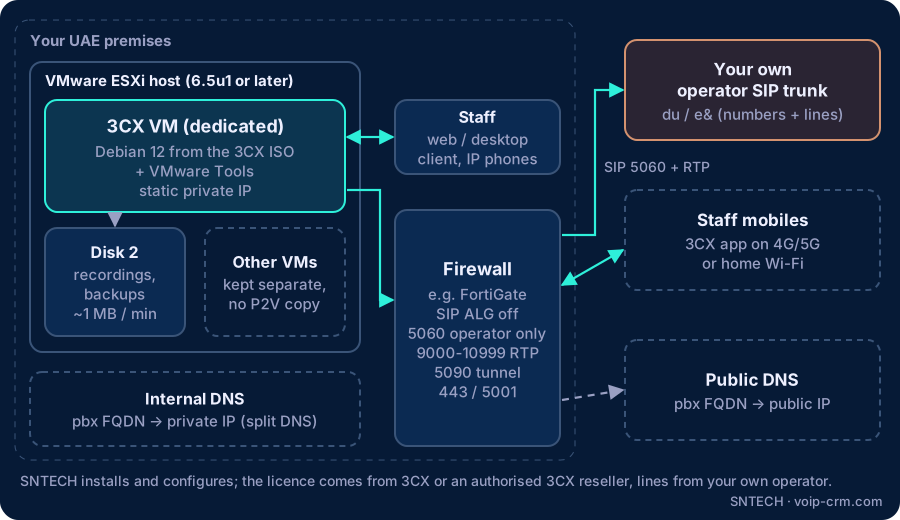
To install 3CX on VMware, create a new, dedicated virtual machine on VMware ESXi 6.5u1 or later, install Debian 12 from the 3CX ISO with VMware Tools, give it a static private IP, a public IP with an FQDN and split DNS, and open only the ports 3CX needs on your firewall with SIP ALG turned off. Get those basics right and an on-premises 3CX runs quietly for years; get them wrong and you chase one-way audio and dropped calls.
This guide is for IT managers and network administrators in UAE offices who already run VMware and want 3CX on their own hardware. It follows 3CX’s own documentation and adds field notes from Dubai installations.
What you need before you start
- A 3CX licence, bought from 3CX or an authorised 3CX reseller. SNTECH advises, installs and configures; we do not offer 3CX hosting.
- A SIP trunk and numbers from your own licensed operator (du or e&). The phone system is installed at your UAE premises and uses lines from your operator; ask the operator for the SIP server address, credentials and the IP addresses they send calls from.
- A public static IP and a domain name (FQDN) for the PBX, e.g. pbx.yourcompany.ae.
- Access to your firewall and your internal DNS server.
Desk phones are optional. Many offices start with only the 3CX mobile app and the web or desktop client, and add phones for reception later. To test first, you can download the free 3CX trial.
3CX on VMware: virtual machine requirements
From 3CX’s Debian installation guide:
- Hypervisor: VMware vSphere Hypervisor (ESXi) 6.5u1 or later, with VMware Tools installed. Hyper-V, KVM and XenServer are also listed.
- Operating system: Debian 12, installed from the 3CX Debian ISO. Debian 10 is no longer supported.
- A fresh VM: do not use a converted physical machine (P2V). 3CX warns that timing problems can stop the guest from syncing with the hypervisor clock.
- Dedicated to 3CX: no other packages, no manual updates from the command line, no VPN interfaces on the VM. Otherwise the install becomes unsupported.
Sizing the 3CX server by extensions
3CX’s recommended hardware page (checked October 2026) gives these Linux figures:
| Up to extensions | vCPU | RAM | SSD storage |
|---|---|---|---|
| 10 | 2 | 4 GB | 80 GB |
| 50 | 4 | 4 GB | 160 GB |
| 250 | 6 | 8 GB | 320 GB |
| 1,000 | 8 | 16 GB | 640 GB |
Call queues, group calls and many web-client users need more CPU and RAM than simple one-to-one calls, and 3CX asks for at least a 1 Gb LAN. Field note: on a shared ESXi host, reserve the CPU and RAM for the 3CX VM, so a backup job on another VM cannot steal resources in the middle of calls.
A separate disk for recordings and backups
3CX estimates about 1 MB per minute of recorded audio. Recordings, voicemail and backups grow every day, so add a second virtual disk for them. If they ever fill the system disk, the PBX stops working properly. Plan an archive routine: move old recordings and backups off the server on a schedule.
Installing 3CX from the Debian ISO: step by step
- Create the VM (Debian 12 64-bit guest type), attach the 3CX Debian ISO to the CD drive and set it to connect at power-on.
- Boot and choose Install. When asked for the hostname, go back and pick Configure network manually to set the static IP, netmask, gateway and DNS.
- Use a private address (10.x, 172.16-31.x or 192.168.x), a simple hostname, the Asia/Dubai time zone, and Guided - use the entire disk with all files in one partition.
- After the reboot, the 3CX installer starts. Pick the 3CX version and accept the licence agreement.
- Generate a configuration file at 3cx.com/install with your 3CX account (On-Premise PBX), then upload it through the browser at http://<VM IP>:5015.
- Install VMware Tools, add the recordings/backups disk, and point 3CX’s storage and backup locations to it.
Network and firewall: the 3CX ports to open
3CX needs a dedicated public IP, port forwarding if it sits behind NAT, and split DNS: the same FQDN resolves to the private IP inside the office and the public IP outside, so the apps work on Wi-Fi and on mobile data. The ports from 3CX’s firewall guide:
| Service | Port | Notes |
|---|---|---|
| SIP (operator trunk) | UDP 5060, TCP 5060-5061 | Allow from your operator’s IPs only |
| RTP audio | UDP 9000-10999 | Full range, no gaps |
| 3CX tunnel / remote apps | TCP + UDP 5090 | Apps and remote phones |
| Web client, apps, provisioning | TCP 443 or 5001 | HTTPS |
Field notes: FortiGate and security
- Turn SIP ALG off. On FortiGate, the SIP session helper and ALG rewrite SIP packets and are a common cause of one-way audio and calls dropping after about 30 seconds. Disable them as described in Fortinet’s documentation for your FortiOS version.
- Lock down 5060. Open SIP only to your operator’s signalling IPs. An open 5060 on the internet is scanned by bots constantly. Remote staff connect through the app and port 5090 instead.
- Run the Firewall Checker in the 3CX Admin Console dashboard after every firewall change. It restarts PBX services, so run it out of hours.
- Back up off the host. A 3CX backup stored on the same ESXi datastore does not help if that host fails.
Frequently asked questions
Can I install 3CX on my existing VMware server?
Yes, on ESXi 6.5u1 or later, as a new VM dedicated to 3CX with VMware Tools. Do not use a P2V copy.
How much CPU, RAM and disk does a 3CX VM need?
For up to 10 extensions, 3CX lists 2 vCPU, 4 GB RAM and 80 GB SSD; see the sizing table above for larger systems.
How much storage do 3CX call recordings use?
About 1 MB per minute of audio. Keep recordings on a separate disk.
Which firewall ports does 3CX need?
SIP 5060, RTP 9000-10999, tunnel 5090 and HTTPS 443 or 5001, with SIP ALG off.
Do we need desk phones to use an on-premises 3CX?
No. The 3CX mobile app and web or desktop client are enough to start.
Need help?
SNTECH engineers plan and install on-premises 3CX on VMware for offices in Dubai, Sharjah, Ajman, Abu Dhabi, Ras Al Khaimah, Umm Al Quwain and Fujairah: VM sizing, firewall and FortiGate setup, SIP trunk connection to your du or e& service, apps and phones, plus AMC support. Call/WhatsApp +971 56 669 8244 or email sales@voip-crm.com for a site survey. See our 3CX phone system, IP PBX phone system and network and IT support pages.