
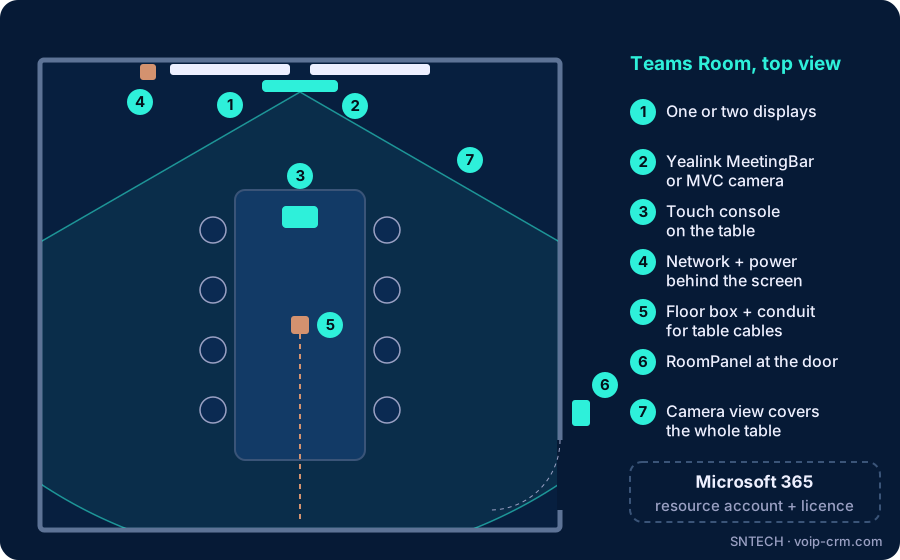
To set up a Microsoft Teams Room with Yealink you need five things: a Yealink Teams Rooms device (a MeetingBar or an MVC kit), a touch console on the table, a display, a wired network connection, and a Microsoft 365 resource account with a Teams Rooms licence. Add a RoomPanel at the door and wireless content sharing, and staff can walk in, tap “Join” and start the meeting in seconds.
This guide is the full checklist we use when planning a Yealink Teams Room in a UAE office, so nothing is forgotten between the IT team, the fit-out contractor and the installer. If you are only choosing between Yealink video bars, see our MeetingBar A20 vs A30 vs A40 comparison.
Microsoft Teams Room checklist at a glance
| Item | What it does | Who usually provides it |
|---|---|---|
| Yealink Teams Rooms device | Camera, microphones, speakers and the computer that runs Teams | Integrator |
| Touch console | Join, start and control meetings from the table | Integrator (often in the bundle) |
| Display(s) | Shows remote people and shared content | Integrator or client |
| Network points and power | Stable wired connection and power behind the screen and at the table | Fit-out / cabling contractor |
| Resource account and licence | Gives the room its own calendar and Teams identity | Client IT (we can assist) |
| RoomPanel (optional) | Shows if the room is free and allows booking at the door | Integrator |
Step 1: choose the Yealink Teams Rooms device
Yealink offers two families for Microsoft Teams Rooms, and the right one depends mainly on the size and shape of the room.
MeetingBar: Teams Rooms on Android
The MeetingBar range is all-in-one: camera, microphones, speakers and the computer are inside one bar mounted at the screen. Teams Rooms runs on the bar itself, so there is no PC in the room. It is the simplest option for huddle, small and medium rooms.
MVC kits: Teams Rooms on Windows
The Yealink MVC series is built around an MCore mini PC running Microsoft Teams Rooms on Windows, with a separate camera, microphones and an MTouch touch panel. Because each part is chosen for the room, MVC kits scale from small rooms to large meeting rooms and boardrooms. For example, Yealink describes the MVC S60 kit as a system for small-to-medium rooms, combining the MCore Pro mini PC, the MTouch Plus panel and the SmartVision 60 centre-of-table camera and audio unit. Larger kits add more cameras and microphones for long tables.
- Pick a MeetingBar for quick, simple rooms where people sit close to the screen.
- Pick an MVC kit for larger rooms, rooms with several cameras or microphones, or when your IT team prefers managing Windows-based Teams Rooms.
Step 2: touch console and display
The touch console is what staff actually use. It sits on the table, shows the room’s meetings for the day and starts a call with one tap. MeetingBars use a Yealink CTP touch console; MVC kits use an MTouch panel. In long rooms, a second panel at the other end of the table saves people walking to the front.
For the display, size it so people at the far end of the table can read a shared spreadsheet, not just see faces. Medium and large rooms often use two screens: one for people, one for content. Use commercial displays where possible, as they are designed for long daily use.
Step 3: network, power and cabling
This is the step that is most often missed during an office fit-out, and the hardest to fix after the walls are painted. Microsoft strongly recommends a wired connection for Teams Rooms devices and recommends around 10 Mbps up and down per room.
- Network points: plan at least one behind the display for the device, plus one at the table if the console or a mini PC sits there.
- Power: sockets behind the screen and at the table, with a floor box or table grommet so cables are hidden.
- Cable routes: conduit from the table to the wall for console, HDMI and microphone cables.
- Firewall and proxy: the room must reach Microsoft 365 services. Teams Rooms does not support proxy authentication, so the room device needs to be exempted.
Step 4: the Microsoft 365 side
A Teams Room is not just hardware. In Microsoft 365, each room needs:
- A resource account: the room gets its own name and email address (for example boardroom@yourcompany.ae), so staff invite it to meetings like a colleague.
- A Microsoft Teams Rooms licence assigned to that account. Microsoft offers different licence levels; your IT team or Microsoft partner confirms which one fits.
- Calendar settings: so the room auto-accepts invitations and declines double bookings.
We work with your IT team or Microsoft partner on this part, then sign the Yealink device in to the room account.
Step 5: useful extras
- Yealink RoomPanel: a small screen at the door showing whether the room is free, with booking on the spot. It ends the “is anyone using this room?” problem.
- Wireless sharing: a Yealink wireless presentation pod lets visitors share a laptop without cables or software.
- Content camera: for teams that use a whiteboard, a camera such as the Yealink UVC30 can show the board in the meeting.
- Extra microphones: for long tables, so the person at the far end is heard as clearly as the person at the front.
Field notes from UAE meeting rooms
- Involve us before the fit-out closes. Most problems we fix are missing network points or power behind the screen. A short drawing review saves cutting into finished walls.
- Check the firewall early. On FortiGate and similar firewalls, web filtering or SSL inspection can block Teams Rooms sign-in or updates. We test the room’s connection before installation day.
- Glass and AC. Glass partitions and ceiling AC above the table are common in Dubai offices. Plan soft furnishings and microphone placement around them.
- Name rooms clearly. Use names staff recognise in Outlook, such as “JLT 12F Boardroom”, especially if you have several sites in Dubai and Abu Dhabi.
Frequently asked questions
What do I need to set up a Microsoft Teams Room with Yealink?
A Yealink Teams Rooms device, a touch console, a display, a wired network point, and a resource account with a Teams Rooms licence. A RoomPanel and wireless sharing are useful extras.
What is the difference between a Yealink MeetingBar and an MVC kit for Teams?
A MeetingBar is all-in-one and runs Teams Rooms on Android. An MVC kit uses an MCore mini PC running Teams Rooms on Windows, with separate camera, microphones and touch panel, so it scales to larger rooms.
Does a Teams Room need its own Microsoft 365 account?
Yes. Each room uses a resource account with its own calendar, plus a Microsoft Teams Rooms licence.
Can a Teams Room work on Wi-Fi?
It can, but a wired connection is strongly recommended. Plan network points during fit-out.
How long does a Teams Room installation take?
A standard room with power and network ready usually fits within a working day. Larger rooms are planned after a site survey.
Need help?
SNTECH designs, installs and supports Yealink Microsoft Teams Rooms across Dubai, Sharjah, Ajman, Abu Dhabi, Ras Al Khaimah, Umm Al Quwain and Fujairah. Send us the room size and a photo, or book a site survey: call/WhatsApp +971 56 669 8244 or email sales@voip-crm.com. See our Microsoft Teams Rooms, Yealink video conferencing and structured cabling pages.