
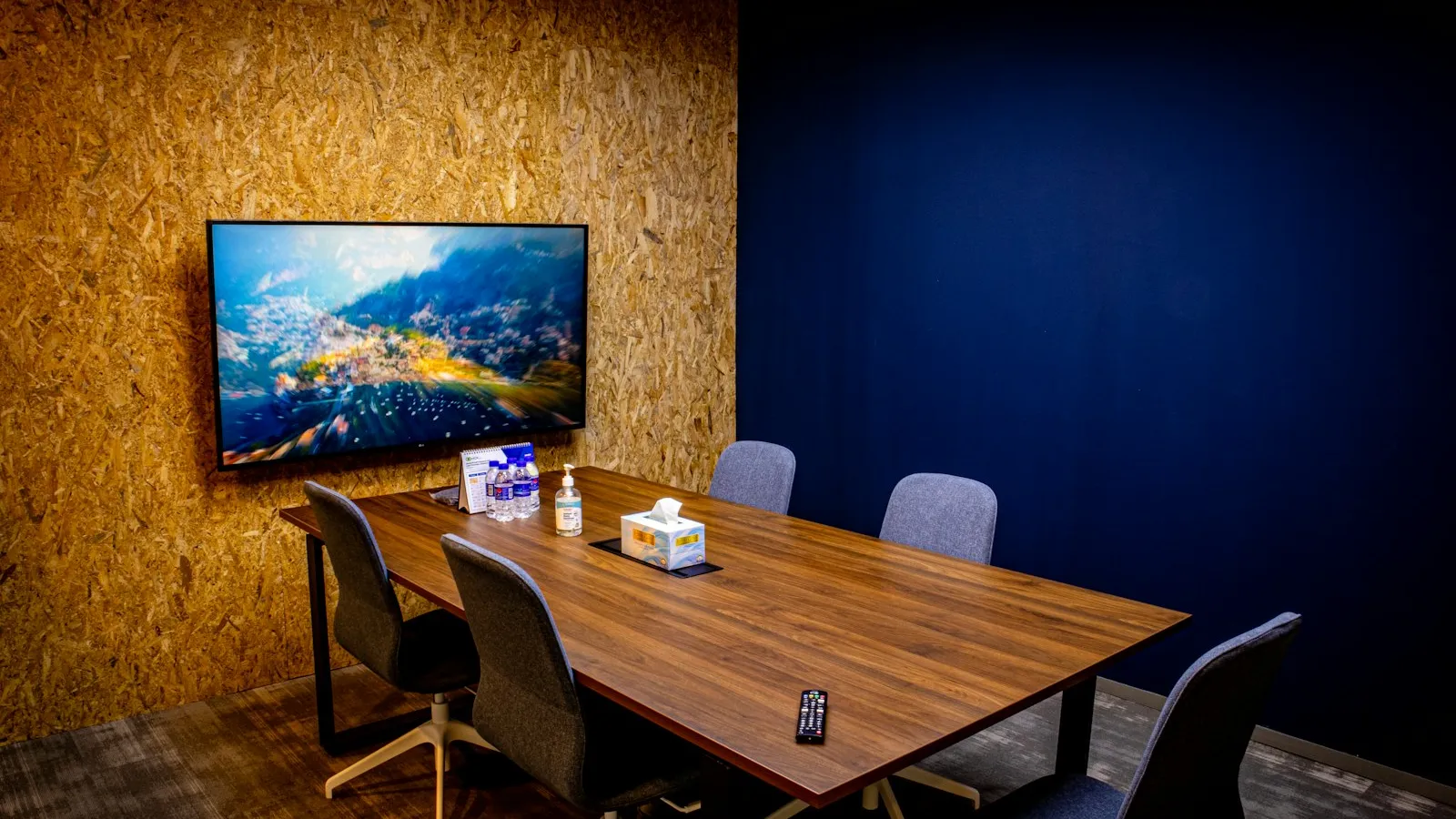
Huddle room video conferencing works when the room is planned for how it will really be used: a compact Yealink video bar matched to either a dedicated Teams or Zoom room or to staff laptops, a screen at the right height and distance, seating that keeps everyone in the camera frame, and a wired network point. Get those right and a 2-by-3-metre space can host calls as well as a boardroom.
This guide focuses on planning the space. To compare Yealink video bars, see our MeetingBar A20 vs A30 vs A40 guide.
What is a huddle room, and why do so many fail?
A huddle room is a small space for quick calls and short discussions. Yealink describes a huddle room as 1 to 5 people, and a small room as 5 to 9. In most Dubai offices these rooms are booked far more than the boardroom.
They also fail most often, for simple reasons:
- A TV on the wall but no camera, so people huddle around one laptop.
- A laptop webcam that shows half the table.
- Nobody can find the HDMI cable, or it does not fit the newest laptops.
- Echo from glass walls and a hard ceiling in a very small space.
Two ways to equip a huddle room
The first decision is not the brand or model. It is how people will start a meeting in the room.
Option 1: a dedicated room system (Teams Rooms or Zoom Rooms)
A video bar runs Teams Rooms or Zoom Rooms itself, with a touch console on the table. The room has its own calendar, so staff invite it and tap Join. No laptop is needed. For small rooms, Yealink positions the MeetingBar A20 for small and huddle rooms.
Option 2: bring your own device (USB video bar)
A USB video bar (camera, microphones and speaker in one) connects to the screen. Staff plug in their laptop and use whatever platform the meeting is on. Yealink lists the UVC34 and UVC40 as all-in-one USB video bars for small and huddle rooms. Yealink states the UVC34 is plug-and-play with no extra drivers or software, with a 4K camera, a 120° wide-angle lens and automatic framing.
| Dedicated room system | USB video bar (BYOD) | |
|---|---|---|
| How a meeting starts | Tap Join on the table console | Plug in a laptop and start the call on it |
| Platforms | One platform per device (Teams or Zoom) | Whatever runs on the laptop |
| Room calendar and booking | Built in through the room account | Booked like a normal room, no device calendar |
| Licence | A room licence from Microsoft or Zoom | No room licence; users’ own accounts |
| Best for | Scheduled internal meetings, non-technical users | Customer calls on many platforms, flexible teams |
| Typical weak point | Guests on other platforms | Cables and laptop settings |
Many offices mix both: dedicated rooms for daily internal meetings, and BYOD huddle rooms near reception for client calls.
Huddle room layout: the rules that matter in a small space
In a large room, a poor layout is annoying. In a huddle room, it decides whether the call works at all.
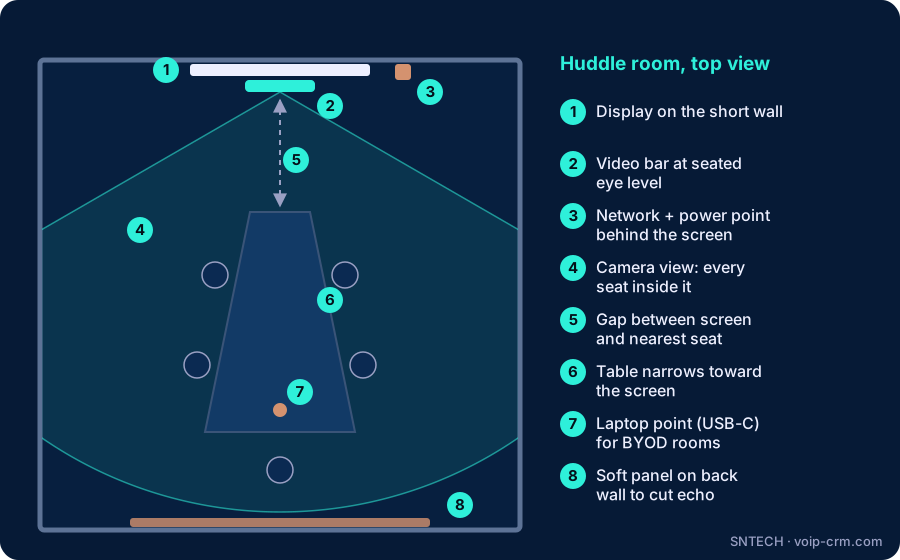
- Put the screen on the short wall, facing the table. People should sit along the sides of the table looking at the screen, not with their backs to it.
- Mount the camera at eye level of seated people. The bar goes just above or below the screen. Mounting the screen high like a TV in a café makes everyone look up and the camera look down on them.
- Leave a gap between the table and the screen. If the nearest chair is almost touching the wall, the wide-angle camera shows half a face. Use a shorter table or a table shape that narrows towards the screen.
- Keep everyone inside the camera angle. A sofa in the corner or a chair beside the screen will be out of frame. Remove seats the camera cannot see.
- Size the screen for shared content such as spreadsheets, matched to the seating distance.
Cables for BYOD rooms
Give laptops one labelled connection point at the table, with a USB-C option, and run cables through a grommet and conduit rather than across the floor.
Converting a small space into a huddle room
Many UAE offices turn a former cabin, store room or acoustic pod into a huddle room. Before buying equipment, check:
- Power and network: a socket and a wired network point behind the screen. Adding them after the fit-out is the expensive part.
- Heat: a screen, a video bar and three people in a closed pod get warm quickly. Check there is enough AC or ventilation, and that the vent is not blowing straight at the microphones.
- Sound absorption: small rooms with glass on two sides echo badly. A fabric wall panel or pinboard opposite the screen often helps more than a better bar.
- Lighting: light should fall on faces from the front or above. A window behind the seats turns people into silhouettes.
Rolling out many huddle rooms: keep them identical
Once one huddle room works, companies usually want more, often across Dubai, Abu Dhabi and Sharjah. Standardise:
- Same equipment and layout everywhere, so staff learn it once.
- Clear names. Use names people recognise in Outlook or the booking system, such as “Al Quoz Huddle 2”.
- A one-page guide on the table: join, share, who to call.
- Central management. Yealink Management Cloud Service (YMCS) lets IT manage Yealink devices by room: run firmware updates, reboot devices and view alarm events from one portal. Microsoft and Zoom also offer their own management portals for room devices.
- Booking rules. Decide whether huddle rooms are bookable or first come, first served, so one-person calls do not block the team.
Field notes from UAE huddle rooms
- Wrong audio device on the laptop. In BYOD rooms, the most common “it doesn’t work” call is the meeting app still using the laptop microphone. A short sign on the table solves most of these.
- Firewall rules. On FortiGate and similar firewalls, web filtering or SSL inspection can block a dedicated Teams or Zoom room from signing in or updating. We test the room’s connection before installation day.
- Cable the room device. Dedicated room systems belong on a wired point; Wi-Fi is fine for BYOD laptops with good coverage.
- Plan for growth. When a huddle room is regularly used by six or seven people, it has become a small meeting room. Move it to a wider-camera setup rather than squeezing in more chairs.
Frequently asked questions
What is a huddle room?
A small meeting space for quick calls and short discussions. Yealink describes it as a space for 1 to 5 people.
Should a huddle room have a Teams Room or a USB video bar?
A dedicated room for scheduled internal meetings; a USB video bar for laptop-based meetings on many platforms.
Which Yealink products suit a huddle room?
The MeetingBar A20 for dedicated rooms; the UVC34 or UVC40 USB bars for laptop-based rooms.
Can a phone booth or small office be turned into a huddle room?
Often yes, with power, a network point and attention to heat and echo.
How do we manage many huddle rooms across our offices?
Standardise equipment and layout, and manage devices centrally, for example with YMCS.
Need help?
SNTECH designs and installs Yealink huddle rooms and meeting rooms across Dubai, Sharjah, Ajman, Abu Dhabi, Ras Al Khaimah, Umm Al Quwain and Fujairah. Send us a photo and the size of the space, or book a site survey: call/WhatsApp +971 56 669 8244 or email sales@voip-crm.com. See our Yealink video conferencing, video conferencing and Microsoft Teams Rooms pages.