
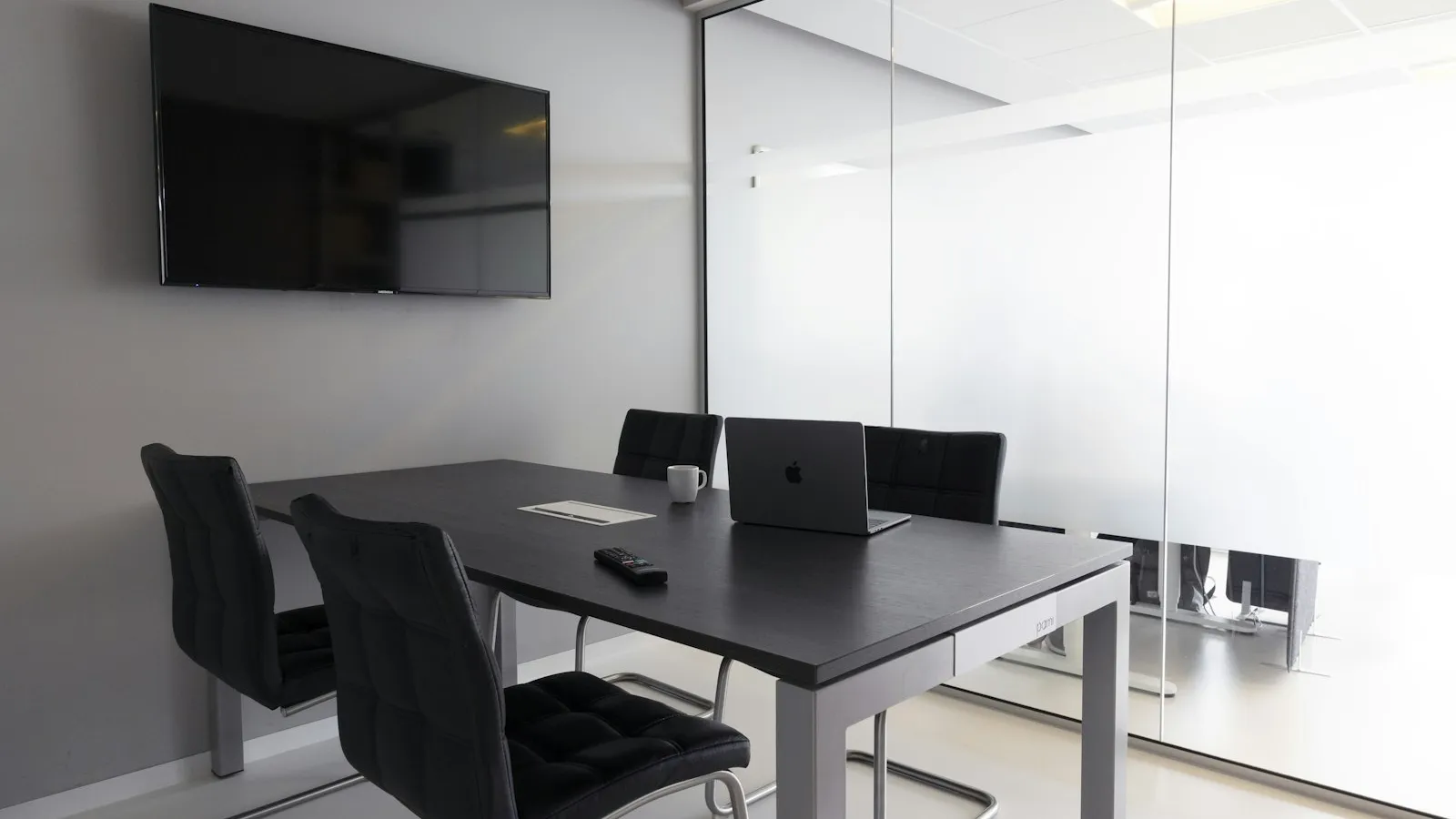
A Yealink RoomPanel stops meeting-room double bookings by putting the room’s real calendar on a touch screen at the door. Staff see at a glance whether the room is free (green) or busy (red), book it on the spot, and, with check-in turned on, rooms booked by people who never turn up are released for everyone else.
If you have ever found two teams outside the same glass door, or a room “booked” all afternoon and empty, this article is for you: what the panel does, how it is connected, and the setup details that make it work in Dubai offices.
Why meeting-room double bookings happen
The panel is only half the fix. Most booking problems in UAE offices come from a few habits:
- More than one diary: a shared Excel sheet, a reception notebook and Outlook all “own” the same room.
- Walk-in use: someone takes an empty room for a quick call, and the person who booked it arrives to a closed door.
- Ghost bookings: weekly meetings that stopped months ago still block the room every Tuesday.
- Room accounts that accept everything: the room mailbox accepts overlapping invitations, so two meetings sit in the same slot.
A meeting-room booking system with a panel at the door fixes all four, as long as there is one calendar per room and everyone books through it.
How a RoomPanel stops double bookings
The RoomPanel does not keep its own diary. It signs in to the room’s account and shows that calendar, so a booking made from Outlook, Teams, a phone or the panel itself lands in the same place.
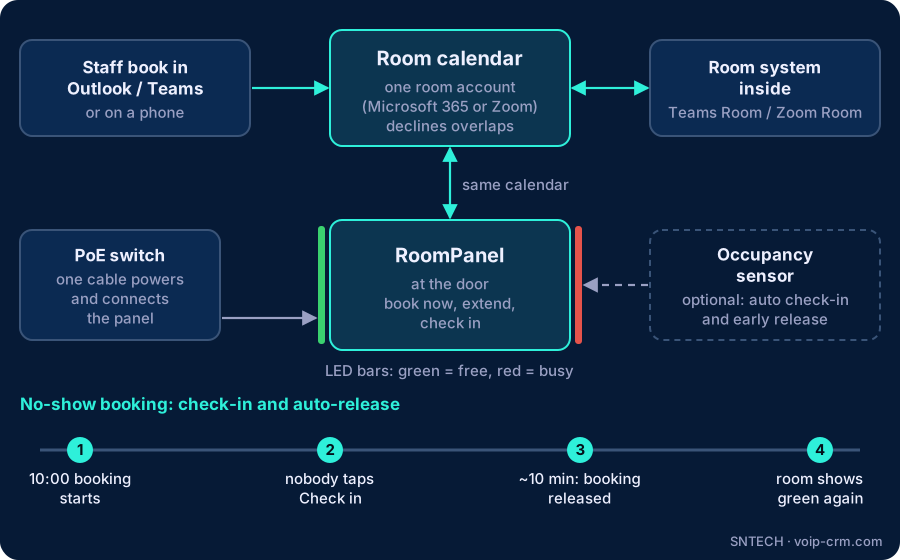
- Staff book the room as an attendee in Outlook or Teams, or tap Book now on the panel.
- The room account accepts the booking and declines anything that overlaps.
- The panel’s LED bars turn red when the room is in use and green when it is free, visible from down the corridor.
- At meeting time, the organiser taps Check in. If nobody does, the booking is released after the set time.
- Inside the room, the Teams Room or Zoom Room device shows the same meeting, so “Join” is one tap.
Yealink offers RoomPanel versions for Microsoft Teams Rooms and Zoom Rooms, so check the version before ordering. Check-in and release options depend on the platform and its licence.
RoomPanel or RoomPanel Plus: which one?
Both are touch panels with full-colour LED status bars, booking at the panel and remote management through the Yealink Management Cloud Service. The main differences, from Yealink’s datasheets:
| Point | RoomPanel | RoomPanel Plus |
|---|---|---|
| Screen | 8-inch touch screen | 10.1-inch touch screen |
| Power | PoE or 12V adapter | PoE or 12V adapter |
| Status lights | RGB LED bars | RGB LED bars |
| Badge / NFC | RFID/NFC built in | RFID/NFC built in |
| Occupancy sensors | Connects to room sensors for auto check-in and release | Connects to room sensors and can act as their gateway |
| Good for | Most meeting rooms and huddle rooms | Boardrooms, reception-facing rooms, large glass fronts |
For a typical Dubai office, the standard RoomPanel suits most rooms. The larger Plus is worth it where the panel is read from a distance or sits at the main boardroom.
Check-in and auto-release: ending ghost bookings
Double bookings are annoying; ghost bookings quietly waste your best rooms. Two tools deal with them:
Check-in on the panel
The organiser must tap Check in within a few minutes of the start time. No check-in means no meeting, and the room goes back to green. Pick a release time that suits your culture: around 10 minutes works for most teams.
Occupancy sensors
A small room sensor tells the panel whether people are actually in the room. It can check a meeting in automatically, or release a room that emptied early. This is useful for busy floors where staff forget to tap the panel.
Field note: tell staff before you switch auto-release on. The first week, a few managers will lose a room they booked “just in case”. After that, rooms are easier to find for everyone.
Setting up a Yealink room booking panel: what we check
- Room accounts. One Microsoft 365 or Zoom room account per room, with a clear name such as “JLT Boardroom 12F”. In Microsoft 365, the calendar settings are set to auto-accept bookings and decline conflicts.
- One booking route. Retire the Excel sheet and the reception notebook, and send one short email to staff explaining how to book.
- Network point at the door. A data point on a PoE switch port beside each door. Wired is more reliable than Wi-Fi in a busy office.
- Mounting. Wall, glass or mullion mounts, at a height everyone can read and reach. The panel faces the corridor, not a window.
- Panel settings. Language, Dubai time zone, check-in rules and screen brightness, then enrolment in Yealink’s management cloud so firmware and settings are managed remotely.
- Test. Book from Outlook, from the panel and from a phone, try an overlapping booking, and let one booking expire without check-in.
Field notes from Dubai offices
- Glass partitions: most new fit-outs in Business Bay, JLT and DIFC use glass room fronts. Plan the cable route through the partition frame or mullion before the glass goes in; adding it later means surface trunking.
- Time zone: if the room account or panel uses the wrong time zone, every booking shows at the wrong hour. Set Asia/Dubai on both.
- Firewall: panels need outbound access to Microsoft or Zoom and to Yealink’s cloud. On FortiGate, a strict web filter is the usual reason a panel shows “offline”; allow the vendor’s published addresses.
- Sun glare: a panel opposite a west-facing window is hard to read in the afternoon. Move it to the other side of the door.
- Ramadan hours: the panel follows the room calendar, so update working hours in Microsoft 365 rather than on each panel.
Frequently asked questions
What does a Yealink RoomPanel do?
It shows the room calendar at the door, lights green or red, and lets staff book, extend or check in on the spot.
How does a RoomPanel stop double bookings?
It reads the room’s single calendar, and the room account declines overlapping bookings.
What is check-in and auto-release?
If nobody checks in within the set time, the booking is released and the room shows as free again.
Does a RoomPanel need a power socket?
Usually not: it can run on PoE over the network cable, or on a 12V adapter.
Can a RoomPanel be used on a room without video conferencing?
Yes. It only needs a room calendar, so it works on any bookable room.
Need help?
SNTECH plans and installs Yealink room booking panels, Teams Rooms and Zoom Rooms for offices in Dubai, Sharjah, Ajman, Abu Dhabi, Ras Al Khaimah, Umm Al Quwain and Fujairah, including cabling, mounting, room accounts and staff handover. Call/WhatsApp +971 56 669 8244 or email sales@voip-crm.com for a site survey. See our Yealink video conferencing, Microsoft Teams Rooms and Zoom Rooms pages.